When Microsoft released Windows 11, they added strict hardware rules—like needing TPM 2.0 and Secure Boot. Microsoft’s official “PC Health Check” app was frustrating. It would just tell you, “This PC can’t run Windows 11,” but it rarely explained why.
WhyNotWin11 was created to fix that exact problem. Having used this tool on multiple laptops and desktop builds, I can confidently say it is the best diagnostic tool for this job. It is a lightweight, open-source program that scans your computer’s hardware and compares it directly against Microsoft’s 11 official requirements.
Understanding the Results
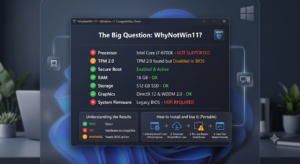
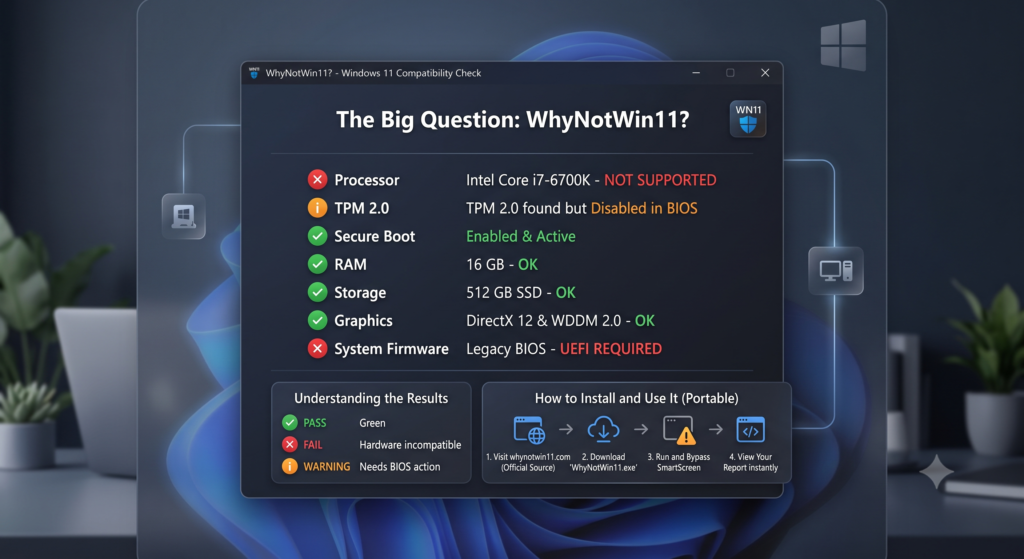
Instead of complex technical jargon, the software uses a very simple color-coded system on a single screen:
- Green (Pass): This specific part of your PC is fully compatible.
- Red (Fail): Your hardware does not meet the requirement (for example, your processor is simply too old).
- Yellow/Orange (Warning): The feature is supported but currently turned off. (For example, your PC has TPM, but you need to enable it in your BIOS settings).
How to Install and Use It (Step-by-Step)
One of the best things about this software is that you do not need to install it at all. It is a “portable” tool. You just download it and run it directly.
Here is exactly how to do it:
- Visit the Source: Go to the official website at whynotwin11.com or their official GitHub page. Always use official sources to avoid downloading malware.
- Download the File: Scroll down and click the download link for the WhyNotWin11.exe file.
- Run the App: Once downloaded, just double-click the file to open it.
- Bypass the Warning: Because this is an independent, open-source tool, Windows Defender SmartScreen might pop up saying, “Windows protected your PC.”
Quick Fix: Don’t worry. Just click “More Info” and then click “Run anyway.” - View Your Report: In just a few seconds, the tool will load and show you exactly what is passing and what is failing.
The Bottom Line: What is the Main Purpose?
The main goal of WhyNotWin11 is complete user transparency and saving you money.
Microsoft’s vague error messages left many people thinking their computer was completely useless and that they needed to buy a brand new one. WhyNotWin11 shows you the exact root of the problem. It tells you whether you actually need new hardware, or if you simply need to restart your computer and flip a digital switch in your system settings.
Because it is open-source (meaning anyone can inspect the code), it is completely safe and trustworthy. In simple words: it gives you the exact answer to why your PC isn’t upgrading, so you know exactly how to fix it.